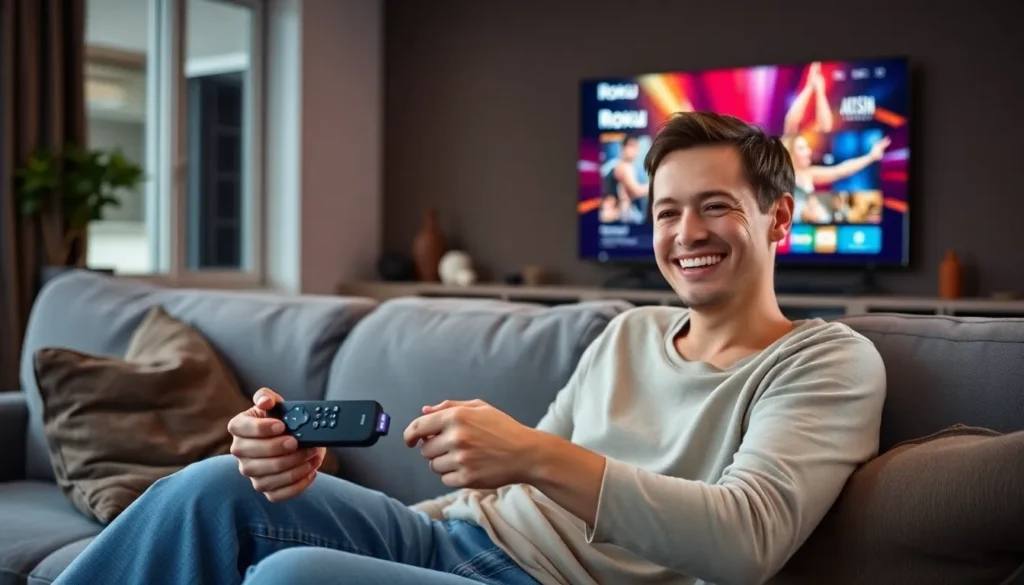

Getting a new Roku remote can be exciting, but programming it might seem daunting at first. Fortunately, it’s a straightforward process that anyone can master. Whether it’s a replacement for a lost remote or an upgrade to a newer model, knowing how to set it up properly ensures a seamless streaming experience.
In this guide, readers will discover easy-to-follow steps to program their new Roku remote. From pairing the remote with the device to troubleshooting common issues, this article covers everything needed to get back to binge-watching favorite shows in no time. With just a few simple actions, anyone can unlock the full potential of their Roku streaming device.
Understanding Your New Roku Remote
Understanding the different types of Roku remotes and their key features enhances the user experience. Education on these areas leads to more effective use of the device.
Types of Roku Remotes
- Standard Roku Remote
Standard Roku remotes feature basic buttons for navigation, including directional arrows, select, and home.
- Roku Voice Remote
Roku Voice remotes include a built-in microphone, allowing users to search for content using voice commands.
- Roku Enhanced Remote
Roku Enhanced remotes offer additional buttons for quick access to popular streaming services and include a headphone jack for private listening.
- Roku Mobile App Remote
Roku Mobile App remotes provide control through smartphones, allowing users to navigate, stream, and use voice search on the go.
Key Features of Your Remote
- Navigation Buttons
Navigation buttons allow easy movement through menus, and users can quickly switch between shows.
- Instant Replay Button
Instant Replay buttons provide a simple way to rewind the last few seconds of a program.
- Channel Shortcut Buttons
Channel shortcut buttons let users directly access preferred streaming services like Netflix and Hulu with one press.
- Volume Control
Volume control functions enable adjustment of sound levels without needing a separate device.
- Private Listening
Private listening features connect headphones directly to the remote, ensuring a personal viewing experience without disturbing others.
Preparing to Program Your Roku Remote
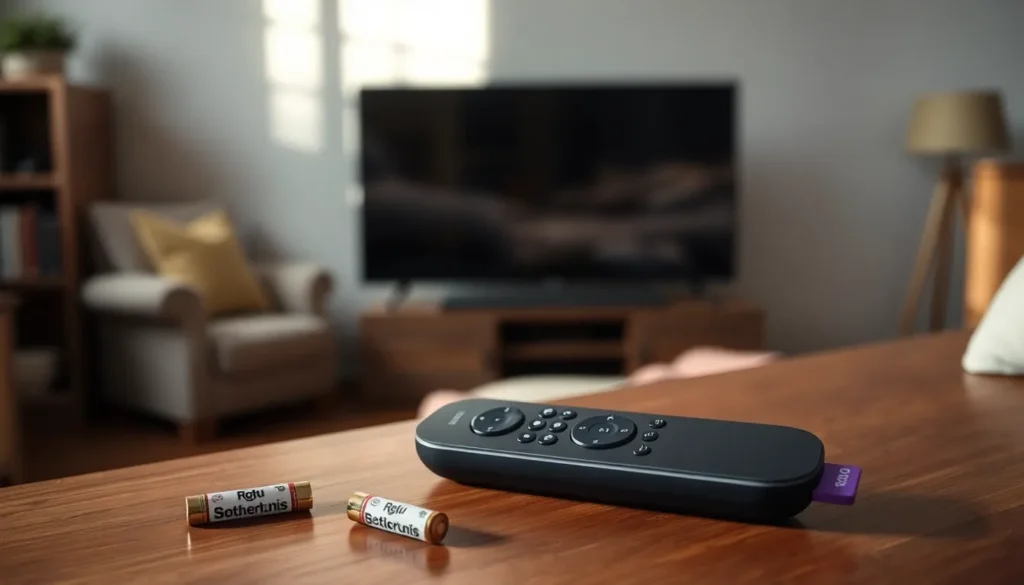
Programming a new Roku remote involves several preparatory steps. Users need to gather the necessary equipment and confirm compatibility with their Roku device to ensure a smooth setup.
Necessary Equipment
- Roku Device: It’s essential to have a Roku streaming device, such as a Roku Ultra or Roku Express.
- Roku Remote: Ensure possession of a compatible Roku remote, whether it’s new or a replacement.
- Batteries: Prepare two AAA batteries, as most Roku remotes require this for operation.
- Wi-Fi Network: A stable Wi-Fi network is crucial to connect the Roku device to the internet.
Ensuring Compatibility
- Model Check: Verify the Roku remote model matches the Roku device model. Certain remotes only work with specific Roku devices.
- Remote Type: Identify whether the remote is infrared (IR) or enhanced. IR remotes need a direct line of sight, while enhanced remotes connect via Wi-Fi.
- Roku Software Version: Ensure the Roku device has the latest software update for optimal remote functionality, as compatibility issues can arise with outdated software.
Step-By-Step Guide to Programming Your Roku Remote
Programming a new Roku remote enhances the streaming experience. Follow these steps to set up your remote effectively.
Using the Roku TV Interface
- Power on the Roku Device: Turn on the Roku device and ensure it connects to the TV.
- Insert Batteries: Insert two AAA batteries into the new Roku remote.
- Pair the Remote: Press and hold the pairing button on the remote for about 3 seconds, until the pairing light starts flashing.
- Wait for Confirmation: Observe the TV screen for a confirmation message indicating successful pairing.
- Test Functionality: Use the remote to navigate the Roku menu, ensuring all buttons respond correctly.
Programming with the Roku App
- Download the Roku App: Install the Roku mobile app from the Google Play Store or Apple App Store.
- Connect to Wi-Fi: Ensure the mobile device connects to the same Wi-Fi network as the Roku device.
- Open the App: Launch the Roku app and select the remote option at the bottom of the screen.
- Pair Using the App: Tap the ‘Connect’ button to pair the app with the Roku device. Follow on-screen prompts for additional pairing if needed.
- Test the Remote Features: Utilize the app’s buttons to navigate and access features, confirming the connection works seamlessly.
Troubleshooting Common Issues
Several issues can arise when programming a new Roku remote. This section covers common problems users encounter, along with efficient solutions.
Remote Not Responding
If the Roku remote isn’t responding, follow these steps to troubleshoot:
- Check Batteries: Replace the two AAA batteries, ensuring they’re installed with the correct polarity.
- Clear Obstructions: Ensure there are no objects blocking the path between the remote and the Roku device.
- Power Cycle the Device: Unplug the Roku device from the power source, wait for 10 seconds, then plug it back in.
- Re-pair the Remote: Hold the pairing button on the remote for three seconds until the status light starts blinking. Wait for the remote to reconnect.
Programming Errors
- Confirm Compatibility: Ensure the remote is compatible with the Roku device model.
- Use the Correct Method: Follow the appropriate steps for pairing, depending on whether it’s a Standard, Voice, or Enhanced Remote.
- Check for Software Updates: Verify that the Roku device has the latest software by navigating to Settings > System > System update.
- Reset the Remote: If issues persist, reset the remote by pressing and holding the reset button (if available), or remove the batteries for 30 seconds before re-inserting them.
Programming a new Roku remote can significantly enhance the streaming experience. With the right steps and a bit of patience users can easily pair their remotes and troubleshoot any issues that may arise. Understanding the different types of Roku remotes and their features allows users to make the most of their devices.
By following the guidelines provided users can confidently set up their new remotes and enjoy seamless access to their favorite content. Whether opting for a standard remote or utilizing the mobile app the process is designed to be user-friendly. With this knowledge in hand users are well-equipped to dive into their streaming adventures.